Tutorials
Learn how to search footage with natural language, build timeline cuts with AI, and master Pyromi.
Getting started
Getting started with Pyromi is fast and seamless. Follow these steps to prepare your environment and launch your first video project:
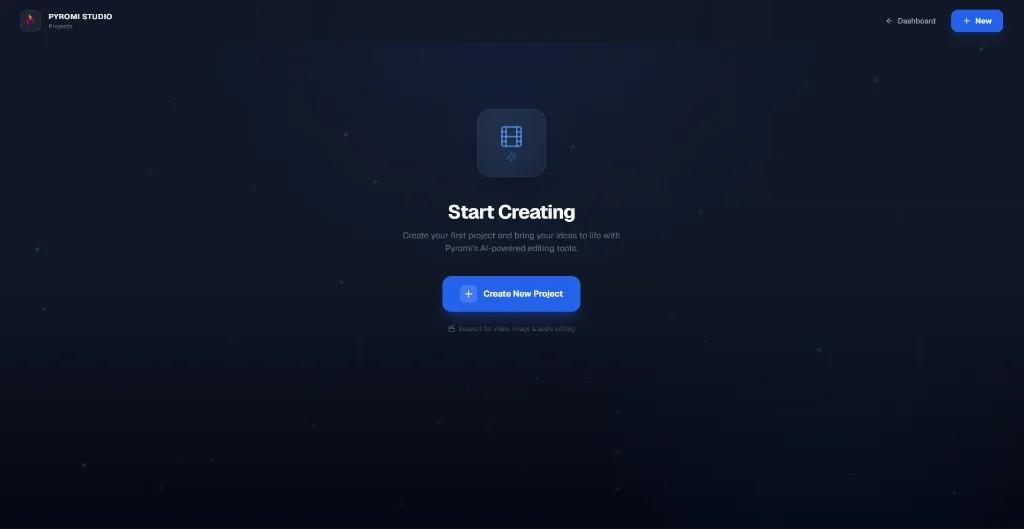
- 1Create or open a project: Click Create New Project to open the live multi-track studio.
- 2Import your raw media: Drag and drop footage from your local drive, import folders, or paste any YouTube URL.
- 3Prompt or edit live: Describe what scenes to find or use the multi-track timeline directly.
Connect footage and assets
Connect your footage library to enable instant AI indexing, focus analysis, and multi-camera organization.
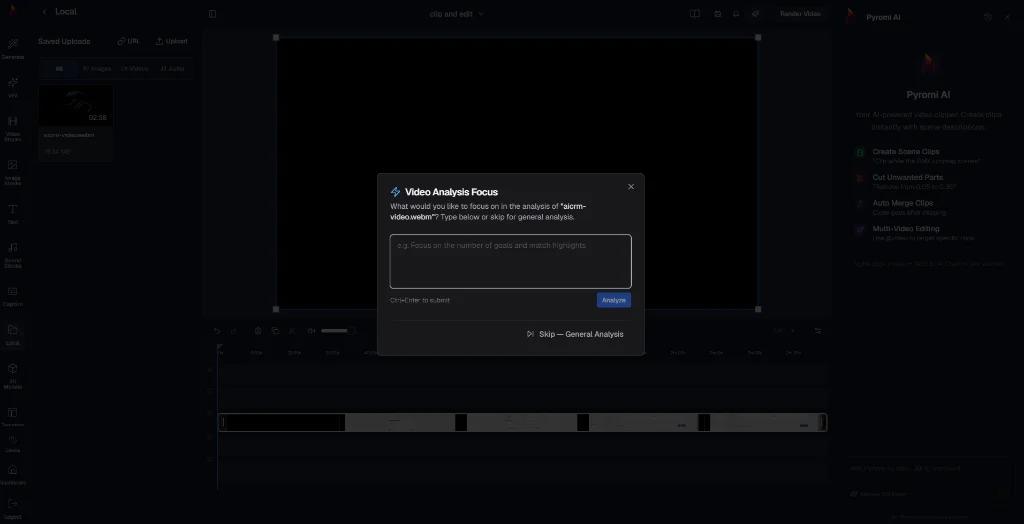
- Specify a custom focus topic (e.g. "focus on goals and match highlights") or run general analysis.
- Automatic background speech-to-text indexing and frame tagging.
- Full support for 4K ProRes, MP4, WebM, MOV, and high-bitrate audio.
Generate videos on the timeline
Pyromi scans the footage in real-time, finds matching moments with timestamps, and builds a timeline sequence automatically.
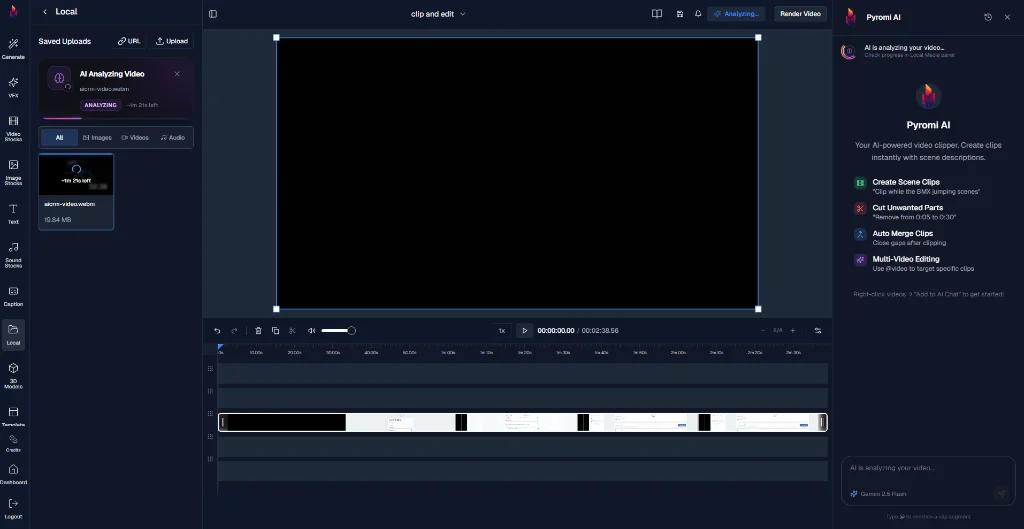
- Prompt-to-timeline: No black box rendering, full timeline assembly.
- Real-time analysis progress indicator with ETA and clip duration tracking.
- Intelligent scene indexing with visual waveform matching.
Media review in the timeline
Review suggested cuts with amber highlights directly on your timeline. Accept or reject individual cuts, tweak animation settings, and refine pacing.
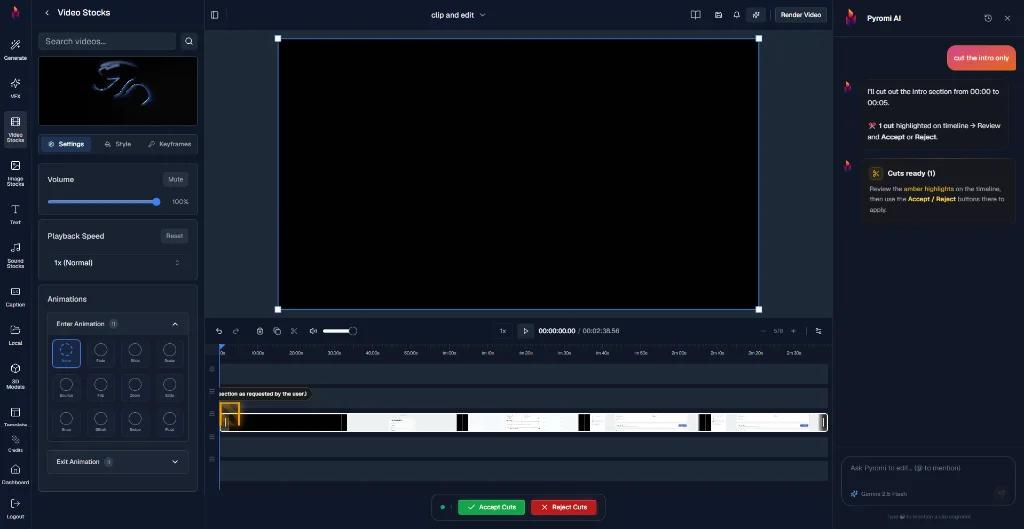
- Interactive cut review: Click "Accept Cuts" or "Reject Cuts" with one tap.
- Enter / Exit animations with custom transitions (Fade, Slide, Scale, Bounce, Zoom).
- Chat assistant support: Type "cut the intro only" to apply timeline modifications instantly.
Semantic audio & cut
Clean speech automatically. Remove filler words ("um", "uh"), cut dead silences, and edit your video simply by deleting text in the transcript.
00:02"So basically [um, like] the main breakthrough was designing the propulsion system with 3D printed alloys."
- One-click silence & filler word removal with zero timeline drift.
- Transcript-based cutting: delete words to cut video footage.
- Multi-speaker voice diarization and automatic volume balancing.
Export
Export your finished project in pristine quality or transfer the timeline to Premiere Pro and DaVinci Resolve.
4K MP4 / ProRes
Lossless video rendering with hardware GPU acceleration.
Platform Presets
Instant formats for YouTube Shorts, Reels, and TikTok.
Premiere & DaVinci XML
Export timeline sequences to NLE software for final grade.